
How to Create a Scheduling Poll in Outlook (2026)
Published October 23, 2026
At a glance
To create a scheduling poll in Outlook, start a new email and add the people you're meeting. On the Insert tab, click "Scheduling poll", pick a few times, click "Next", then "Create poll". Outlook adds the poll to your email. Send it, and everyone votes on the times that work for them.
Scheduling Poll is Outlook's built-in way to find a meeting time with a group, much like a Doodle poll. It used to be called FindTime, and its web address still says "findtime". There's a catch, though: you need a Microsoft 365 work or school account to create one. We built a poll step by step in Outlook on the web in October 2026. Here's every screen, how the meeting gets booked, and a free option if Outlook won't let you make one.
Table of contents
What is Outlook Scheduling Poll?
Scheduling Poll lets you offer a group several meeting times and let them vote. You pick the times in a panel next to your email. Outlook checks the calendars of people in your organization and shows who's free for each time. Your attendees then vote, and Outlook can book the meeting automatically once everyone agrees.
It's best for meetings inside one company, where Outlook can see everyone's calendar. People outside your company can vote too, but Outlook can't see their calendars, so their availability shows as unknown.
Who can use Scheduling Poll?
- To create a poll, you need a Microsoft 365 business account, the kind you get from work or school. Microsoft says creating a poll "is not supported in Outlook.com with personal or third-party accounts."
- To vote, anyone with the email can take part, with any email address.
- Where it works: Outlook on the web, the new Outlook for Windows, and classic Outlook for Windows with Microsoft 365, Outlook 2024, 2021 or 2019.
If you only have a free Outlook.com account, skip to a free scheduling poll for everyone.
How to create a scheduling poll in Outlook
These steps are for Outlook on the web and the new Outlook for Windows, which look the same.
1. Start a new email and add your attendees
Click New mail. In the To box, add everyone who should vote, and give the email a subject, such as "Team planning meeting". The poll uses this subject as the meeting title.
One thing that tripped us up: after typing an address, press Tab so Outlook turns it into a recipient. If you just keep typing, the addresses run together.
2. Click "Scheduling poll" on the Insert tab
Click in the message body, open the Insert tab, and click the Scheduling poll button. Its tooltip says "Create a scheduling poll". Don't confuse it with the Polls button next to it, which adds a simple vote to the email instead.

3. Pick the times
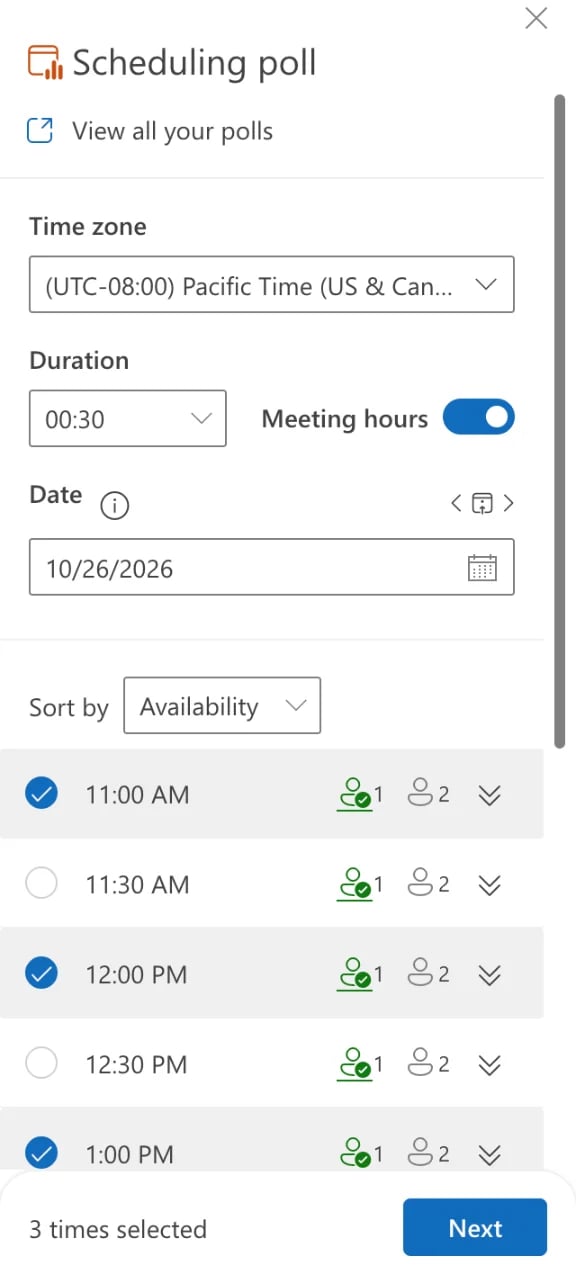
A "Scheduling poll" panel opens on the right. Set:
- Time zone: it starts on your Outlook time zone, which may not be the one your computer uses. Ours opened on Pacific Time.
- Duration: how long the meeting lasts.
- Meeting hours: leave this on to only see times inside working hours.
- Date: move between days with the arrows or the date picker.
Outlook then lists times, with an icon for how many attendees are free. Tick 2 to 5 times that work for you, then click Next.
4. Add a location and check the poll settings
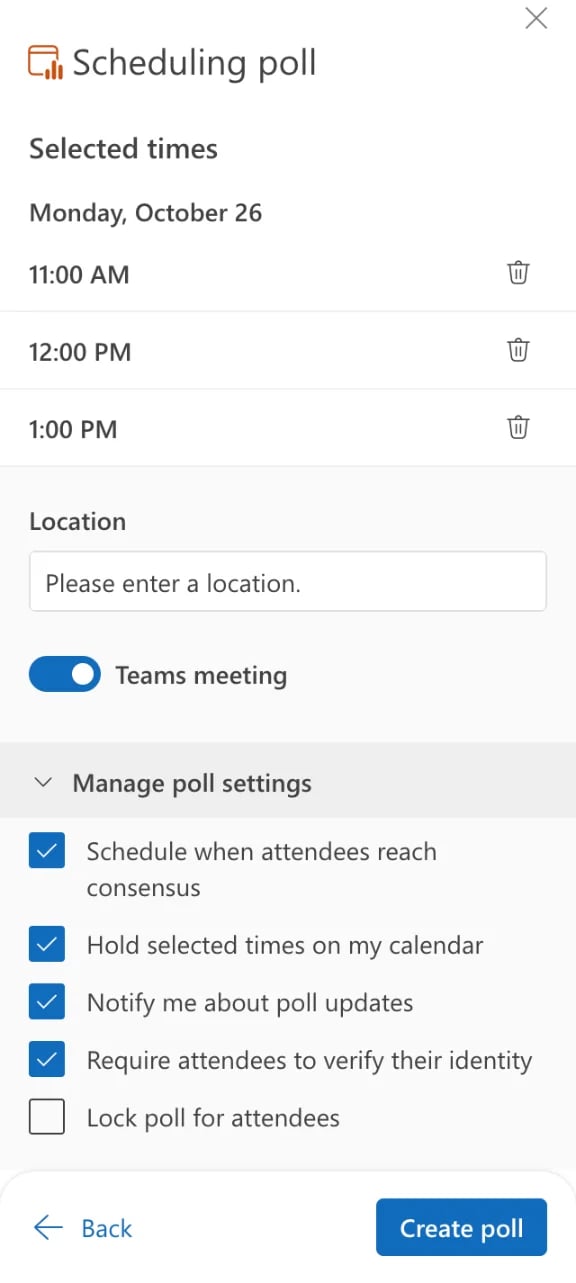
The next screen lists the times you picked. Add a Location, or leave Teams meeting on to add a Microsoft Teams link. Then open Manage poll settings:
- Schedule when attendees reach consensus: books the meeting automatically when everyone agrees. On by default.
- Hold selected times on my calendar: puts tentative holds on your calendar until the poll ends. On by default.
- Notify me about poll updates: emails you as people vote. On by default.
- Require attendees to verify their identity: voters sign in or confirm with a code before they vote. On by default.
- Lock poll for attendees: stops voters from suggesting new times. Off by default.
If you're polling people outside your company, think about turning off the identity check. It adds a step for every voter.
5. Create the poll and send the email
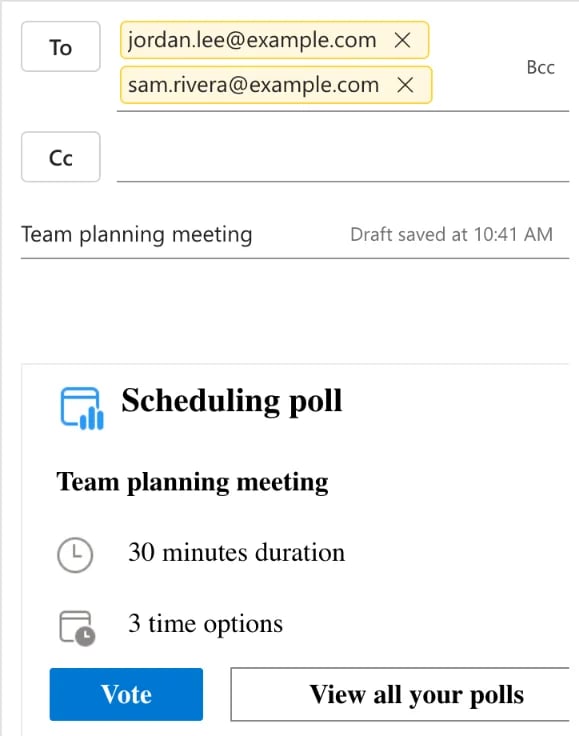
Click Create poll. Outlook says "Your poll is ready to be shared!" and adds a poll card to your email, with a Vote button. Nothing goes out until you click Send.
You can also start a poll from your calendar: on a new meeting, Microsoft puts New Scheduling Poll on the Meeting tab.
What your attendees see
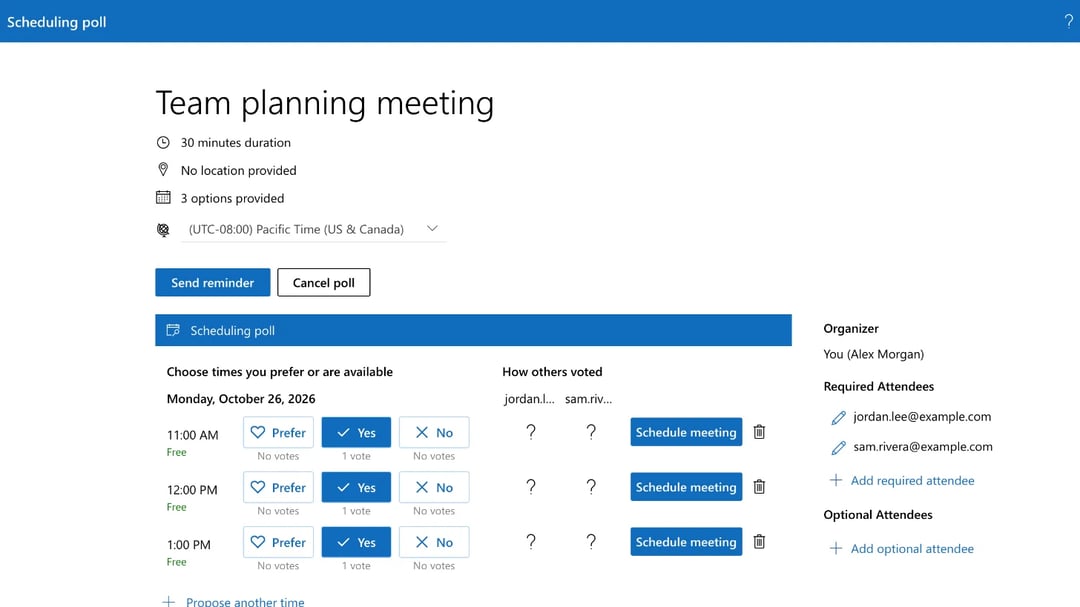
Each attendee gets your email and clicks Vote. The poll page lists your times, and for each one they choose Prefer, Yes or No. They can also Propose another time, unless you locked the poll. If you kept the identity check on, they sign in or enter a code sent to their email first.
The poll page also shows "How others voted", with a column for each attendee.
How the meeting gets booked
There are 2 ways the poll ends:
- Automatically. With "Schedule when attendees reach consensus" on, Microsoft says "a calendar event is automatically scheduled if all required attendees have voted in favor of a specific time option". If several times work, it picks the earliest.
- By you. Open the poll and click Schedule meeting next to the time you want. Outlook sends the meeting invite to everyone.
To find your polls later, click View all your polls in the panel or the email. The Scheduling poll dashboard lists them under "Open polls", "Completed", "Canceled" and "Expired", with how many attendees have responded. From a poll's page, you can also Send reminder or Cancel poll.
Our take on Outlook Scheduling Poll
In our test: Scheduling Poll is genuinely useful inside a company. It reads your coworkers' calendars, suggests times when they're free, and can book the meeting by itself once everyone agrees. That's more than most free poll tools do. But it's clumsy for anyone outside your Microsoft 365 organization. You build the poll inside an email, outside guests show up as "?" because Outlook can't see their calendars, and the identity check adds a hoop for every voter. The poll page itself looks more like an admin screen than something you'd send a client.
What we liked:
- It checks your coworkers' calendars and shows who's free for each time.
- It can book the meeting automatically once everyone agrees.
- Teams links are added for you.
Where it falls short:
- You need a work or school Microsoft 365 account to create a poll.
- Outside guests are unknowns, with no view of their free times.
- Extra steps for voters when the identity check is on, which it is by default.
- It lives inside an email, so it's built for an email thread, not for a quick link in a group chat.
A free scheduling poll for everyone: zcal
No business account, or polling people outside your company? zcal is a free scheduling app whose meeting polls work for anyone with an email address, and the final meeting still lands in your Outlook calendar:
- Pick the times. Connect your Outlook or Microsoft 365 calendar (or Google or Apple) and choose the times you can meet.
- Share one link. Send it by email, Teams, Slack or text. Voters pick the times that work and add their name and email, with no account or sign-in code.
- Pick the final time. zcal adds the meeting to your Outlook calendar and sends the invite to everyone who voted, with a Teams, Zoom or Google Meet link.
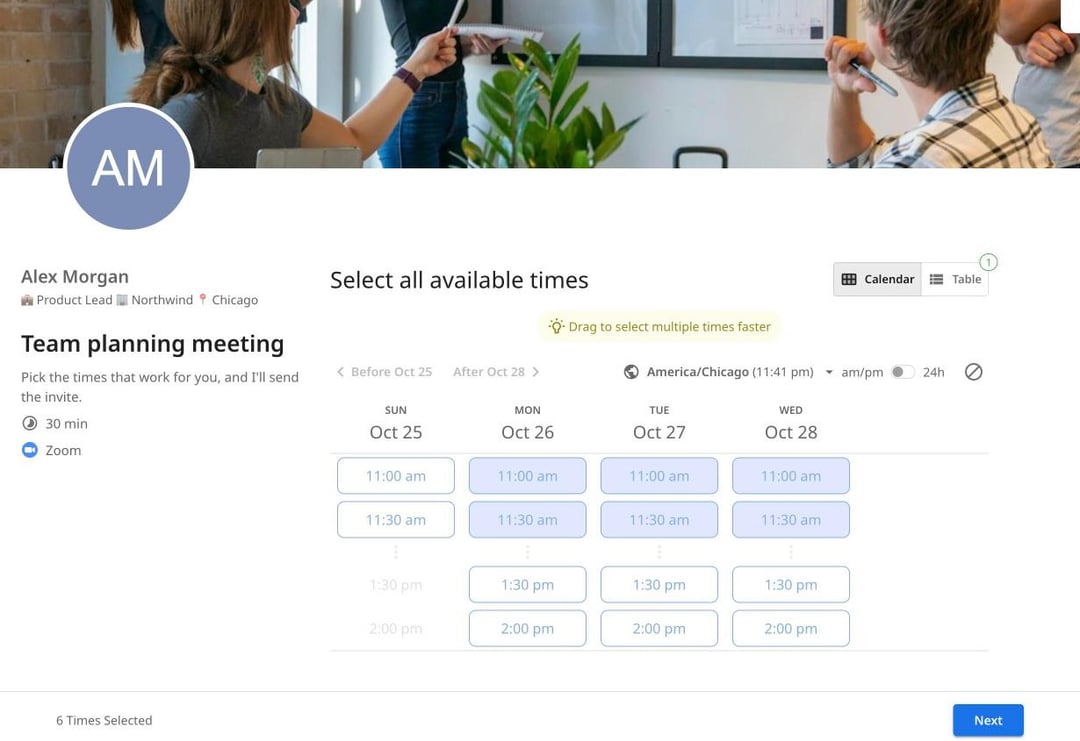
Polls are part of zcal's free plan, with no limit on polls or voters and no ads. Create a free poll, or see how zcal compares with Doodle.
Frequently asked questions
Is Outlook Scheduling Poll free?
Can I create a scheduling poll with a personal Outlook.com account?
What happened to FindTime?
Can people outside my organization vote?
How do I make a Doodle-style poll in Outlook?
How do I see who has voted?
Related Articles
There's a better way to schedule meetings
Join zcal freeWant unlimited booking links, polls and reminders for free?
Try zcal free