
How to Set Up a Google Calendar Appointment Schedule (2026)
Published October 22, 2026
At a glance
To create an appointment schedule in Google Calendar, open Google Calendar on a computer, click "Create", then "Appointment schedule". Add a title and a length, set the hours you're free, then click "Next", fill in your booking page and click "Save". Share the link, and people can book your open times.
Appointment schedules turn Google Calendar into a simple booking page, and every Google account has them. They replaced Google's older "appointment slots", so if you've heard that name, this is the same idea. We set one up step by step in a free Google account in October 2026. Here's each screen, what's free and what isn't, and where Google's booking page runs out.
Table of contents
What is a Google Calendar appointment schedule?
An appointment schedule is a block of time you open up for bookings. You tell Google when you're free, such as weekdays from 9 to 5, and how long each meeting lasts. Google turns that into a booking page with a link. Anyone with the link can pick an open time, and the meeting lands on your calendar, with a Google Meet link if you want one.
It's built for meetings that one person books at a time: client calls, office hours, interviews or tutoring. Because it checks your Google Calendar, nobody can book a time that's already taken.
Is Google Calendar appointment scheduling free?
Yes, with limits. Google's help center says a personal Google account "can create a single booking page", and it checks 1 calendar for conflicts. These features "require an eligible Google Workspace or Google One subscription":
- More than one appointment schedule.
- Automatic email reminders.
- Checking more than one calendar for conflicts (or merge your Google calendars into one first).
- Taking payments for appointments.
- Email verification to stop spam bookings.
- Up to 20 co-hosts.
In the app, Google's upgrade prompts point to "a Google One Premium plan". Some Google Workspace plans unlock the extras too, but Workspace Business Starter still gets just 1 booking page.
How to create an appointment schedule in Google Calendar
You need a computer for this: the Google Calendar phone app can't create appointment schedules.
1. Click "Create", then "Appointment schedule"
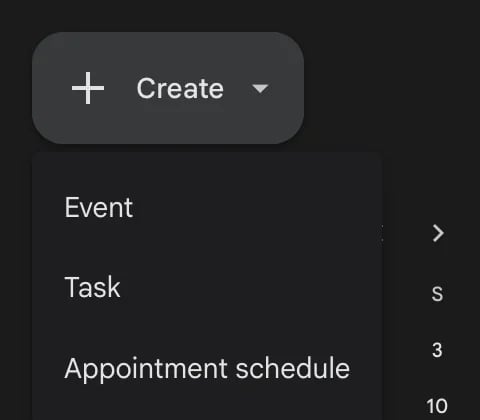
Open Google Calendar and click Create at the top left. The menu offers "Event", "Task" and "Appointment schedule".
2. Add a title and a length
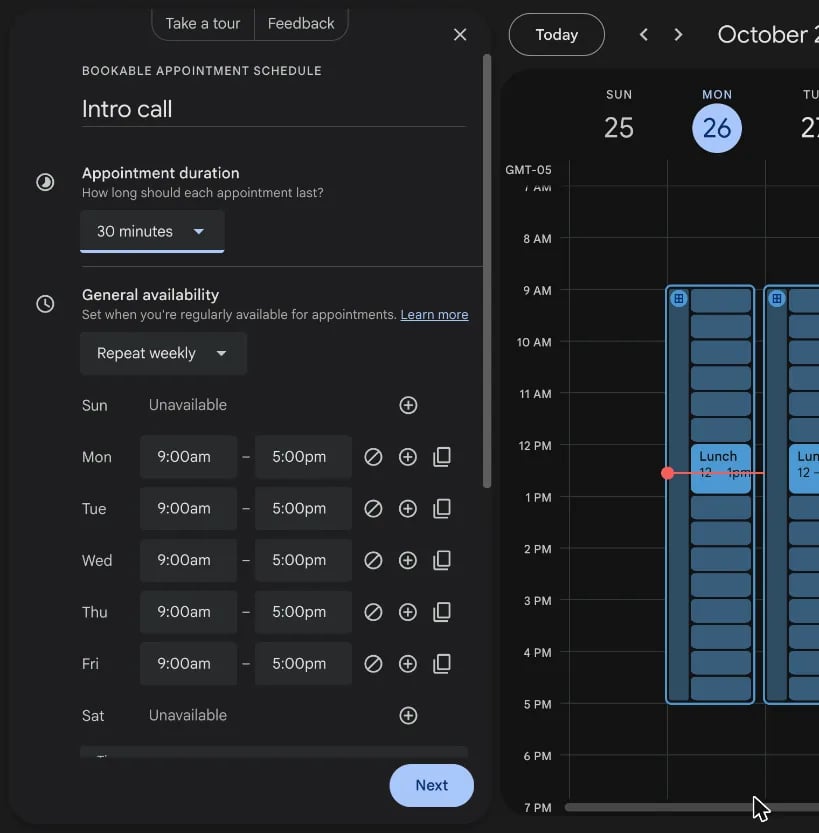
A panel opens on the left. Type a title in "Add title", such as "Intro call". Guests see it on your booking page, and it becomes the name of each booked meeting.
Under "Appointment duration", pick how long each meeting lasts: 15, 30 or 45 minutes, 1, 1.5 or 2 hours, or "Custom". The default is 1 hour.
3. Set your hours
Under "General availability", Google starts you on "Repeat weekly", Monday to Friday, 9:00am to 5:00pm. Change the hours for each day, add a second block with the plus icon (for example, mornings and late afternoons), or mark a day "Unavailable".
As you edit, your open slots appear right on your week view, so you can see exactly what guests will be offered. It's the nicest part of the whole setup.
Below the hours, 2 more settings are worth a look:
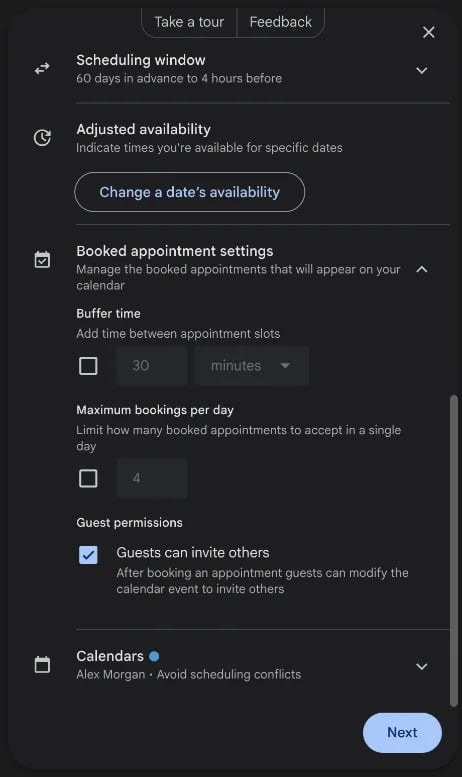
- Scheduling window: how far ahead and how last-minute people can book. The default is "60 days in advance to 4 hours before".
- Adjusted availability: "Change a date's availability" for a single day, such as a holiday.
4. Add buffer time and a daily limit
Open Booked appointment settings. "Buffer time" adds a gap after each meeting, and "Maximum bookings per day" caps how many you take. Both are free. "Guests can invite others" is on by default, so a guest can add a colleague to the meeting.
Then click Next.
5. Fill in your booking page
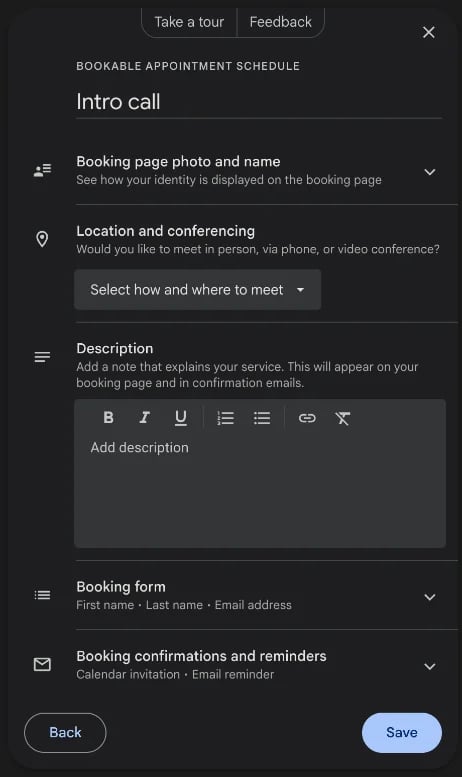
The second screen sets up what guests see:
- Booking page photo and name: your Google profile photo and name.
- Location and conferencing: "Google Meet video conferencing", "In-person meeting", "Phone call" or "None". There's no Zoom or Microsoft Teams option.
- Description: a short note about the meeting, shown on the page and in the confirmation email.
- Booking form: first name, last name and email, plus any questions you add.
6. Check confirmations and reminders
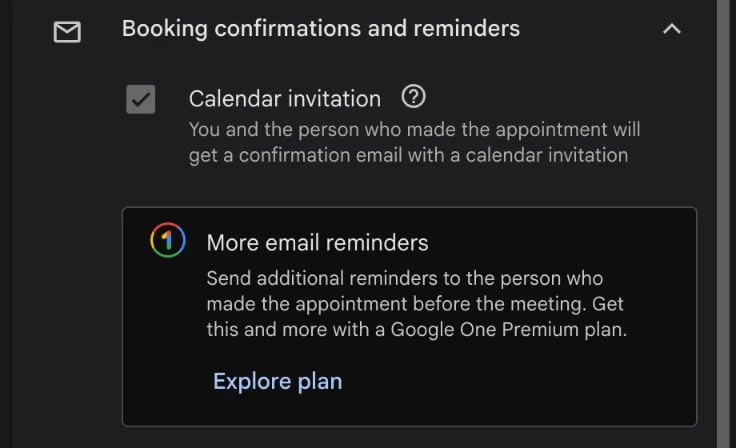
Under "Booking confirmations and reminders", the free plan sends a "Calendar invitation": "You and the person who made the appointment will get a confirmation email with a calendar invitation." Reminder emails before the meeting are where Google asks you to upgrade.
7. Save and share your link
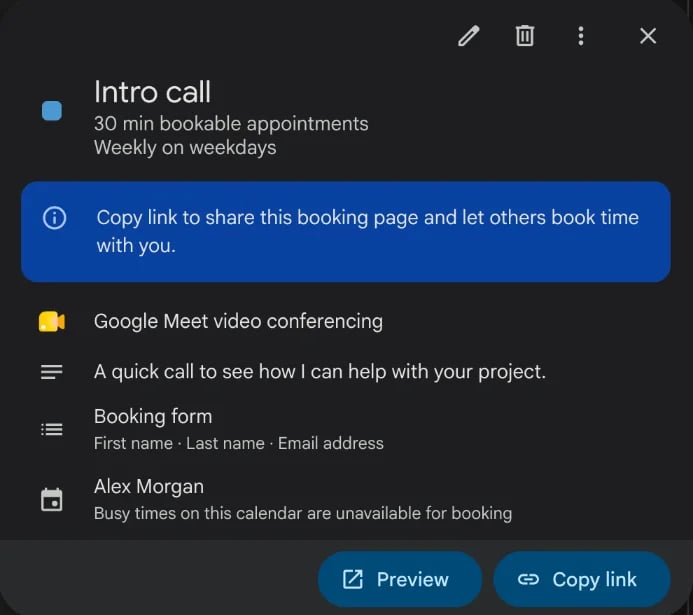
Click Save. Your schedule now appears under "Booking pages" in the left sidebar. Click it, then Copy link, and paste the link into an email, a chat or your website. Preview shows the page your guests will see.
What your guests see
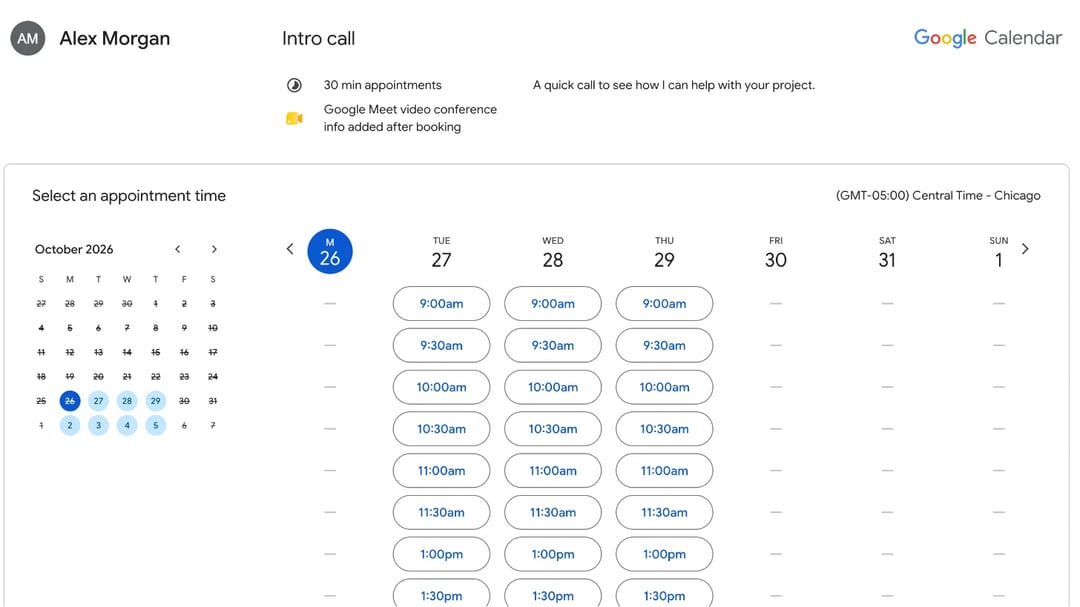
Your guest sees your name and photo, the meeting name, its length and your description, then a month calendar and a week of time buttons. They pick a time and fill in the form. They don't need a Google account. Google adds the meeting to your calendar, sends both of you the invitation and creates the Google Meet link.
The page also checks your calendar as it goes. In our test, an all-day event on Friday removed every Friday slot, without any setup.
How to add your booking page to a website
Open your booking page, click Share, and choose the Website embed tab. Google gives you code to paste into your site. The Link tab has the same link as "Copy link", with Google's note: "Anyone with the link can book an appointment."
How to edit or delete an appointment schedule
Click the schedule under "Booking pages" in the sidebar, or on any of its blocks in your calendar:
- To edit, click the pencil icon. Change your hours or settings, click "Next", then "Save".
- To delete, click the trash icon ("Delete appointment schedule").
Our take: where Google's booking page falls short
In our test: setting up a Google appointment schedule was the quickest booking setup we've tried. If you already live in Google Calendar, there's nothing new to sign up for, and seeing your open slots on your own week view is genuinely helpful. But the free version runs out almost as fast as it starts. You get one booking page, so a 30-minute intro call and a 60-minute session can't both exist. It checks one calendar, sends no reminders, and only offers Google Meet. And the guest page is plain: a small photo, your name and a grid of times under the Google Calendar logo.
What we liked:
- Nothing to install, and it's free in every Google account.
- Your open slots show up on your own calendar while you set it up.
- Buffer time and daily limits are free.
Where it stops:
- 1 booking page on a free account.
- 1 calendar checked for conflicts.
- No reminder emails before the meeting without a paid plan.
- No Zoom or Teams, only Google Meet.
- No meeting polls, so it can't find a time for a whole team.
- A plain page that doesn't feel like yours.
Google appointment schedules vs zcal
Like the idea, but already hitting the limits? zcal gives you the same kind of booking page, free and without them. It connects to your Google Calendar, so every booking lands right where you already work.
| Google Calendar (free) | zcal (free) | |
|---|---|---|
| Booking pages | 1 | Unlimited |
| Calendars checked for conflicts | 1 | Unlimited (Google, Outlook, Apple) |
| Email reminder before the meeting | No | Yes |
| Video links | Google Meet | Zoom, Google Meet, Microsoft Teams |
| Meeting polls | No | Yes |
| Cover photo and welcome video | No | Yes |
zcal's booking pages also reflect your brand, with a cover photo, a welcome video and a short intro next to the calendar. Create a free booking page, or see how zcal compares with other Calendly alternatives, Google Calendar included.
Frequently asked questions
Is Google appointment scheduling free?
Can I have more than one appointment schedule in Google Calendar?
Can I use Zoom with Google Calendar appointment schedules?
Does Google Calendar send appointment reminders?
Can I create an appointment schedule on my phone?
What happened to Google Calendar appointment slots?
Related Articles
There's a better way to schedule meetings
Join zcal freeWant unlimited booking links, polls and reminders for free?
Try zcal free