
How to Use When2meet: Create an Event and Read the Results (2026)
Published October 21, 2026
At a glance
To create a When2meet, go to when2meet.com, name your event, drag across the dates that might work, set the earliest and latest times, check the time zone and click "Create Event". Then share the link, and each person paints the times they're free on a grid.
That's the whole idea, and it fits on one screen. The catches show up later: who can change your answers, why the times look wrong for a friend in another city, and what to do once the grid turns green. So we made a real When2meet in October 2026, had 4 people fill it in, and wrote down every step with screenshots, plus the things nobody tells you.
Table of contents
What is When2meet?
When2meet is a free website that helps a group find a time to meet. You suggest a range of dates and hours, and everyone marks when they're free on a shared grid. The grid turns a darker green wherever more people overlap, so the best time stands out.
Nobody needs an account, not even you. When2meet says it doesn't "ask for contact or billing information", and ads and donations pay for the site. That's why it's a favorite for student projects, clubs and quick team plans: you can send a link in a group chat and have answers within the hour.
How to create a When2meet
1. Name your event
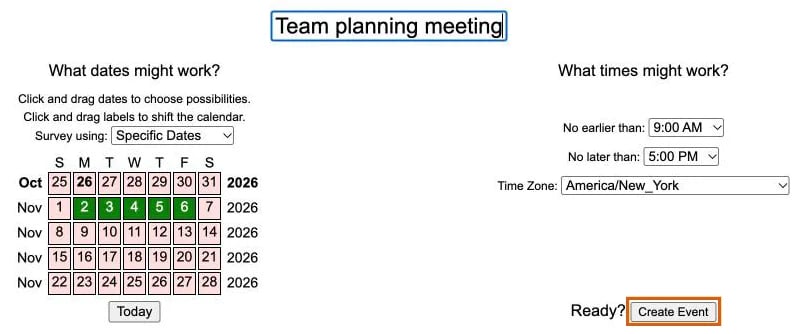
Go to when2meet.com. The "Plan a New Event" page opens right away, with no sign-up. Type a name in the "New Event Name" box, such as "Team planning meeting".
Pick the name with care. The event page has no edit button, so you can't rename the event later.
2. Pick the dates that might work
Under "What dates might work?", choose how to survey your group:
- Specific Dates (the default) is for one meeting. Click a date, or drag across several, and they turn green. The calendar shows 5 weeks at a time. To plan further ahead, drag a month label up to move the calendar, and click "Today" to jump back.
- Days of the Week is for a meeting that repeats, such as a weekly study group. You pick days like Monday and Thursday, not dates. Note the catch: When2meet says that "for 'Days of the Week' events, it is expected that all participants are in a single time zone", and the time zone menu disappears.
3. Set the time range
Under "What times might work?", choose "No earlier than" and "No later than". The menus go in whole hours only, so you can't start at 9:30.
Keep the range tight. Each hour becomes 4 rows of 15 minutes, so 9 AM to 5 PM over 5 days is a grid of 160 boxes for every person to fill in. A smaller grid gets more answers.
4. Check the time zone
The "Time Zone" menu starts on your device's time zone. It lists about 400 zones by city name, such as "America/New_York", with no search box, so scroll to yours if it's wrong. If your group is spread across time zones, stay on Specific Dates.
5. Create the event and share the link
Click "Create Event".
The event page opens with its own link at the top, after "To invite people to this event, you can email them, send them a Facebook message, or just direct them to". Copy the link and paste it into your email, chat or text.
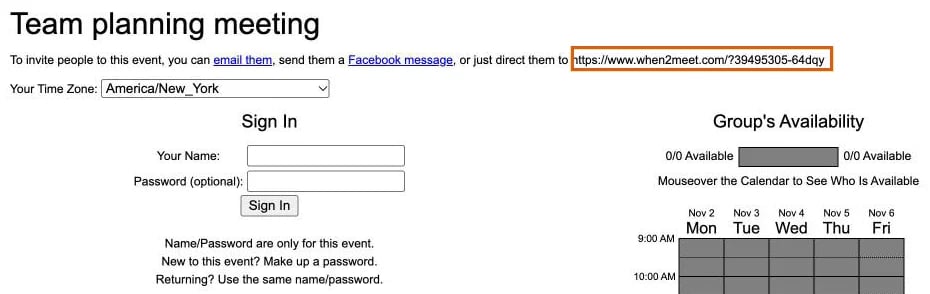
Save that link somewhere safe. There's no account and no list of your events, so if you lose it, the event is gone for you too.
How to fill in a When2meet
Everyone, including you, adds their times the same way:
- Open the link and check "Your Time Zone". When2meet shows the grid in each person's own time zone. Our event ran 9 AM to 5 PM New York time, and in Chicago the same grid showed 8 AM to 4 PM. That's right, but it surprises people who expect your hours.
- Sign in. Type your name and, if you like, a password. When2meet notes that "Name/Password are only for this event". It's not an account.
- Paint your free times. Click and drag down a column, and the boxes turn from pink to green. Drag over them again to clear them. There's no save button: the page says "Saved Immediately", and it is.
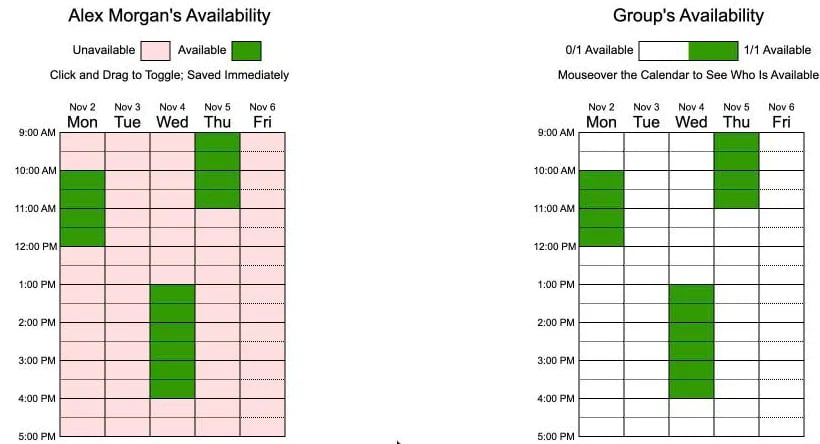
To change your answers later, sign in again with the exact same name and password. A different spelling, like "Alex M" instead of "Alex Morgan", adds a second person to the grid.
Add a password. We opened our event again, typed "Alex Morgan" with no password, and got Alex's grid, ready to edit. So anyone with the link can change an answer that has no password.
How to read When2meet results
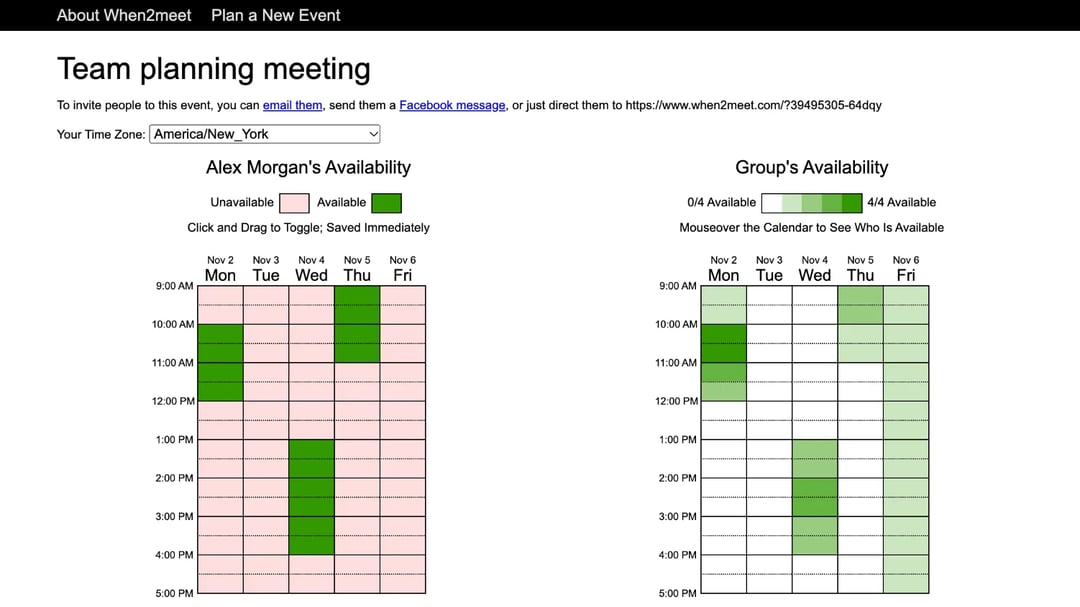
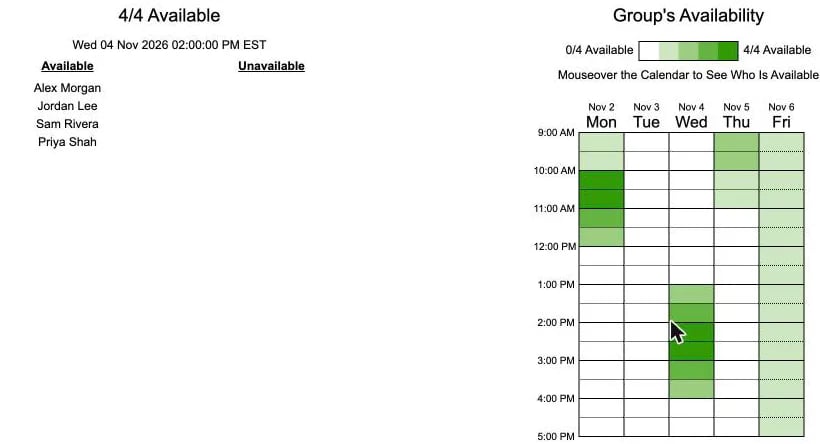
The "Group's Availability" grid on the right is the result. The legend runs from "0/4 Available" in white to "4/4 Available" in dark green, so the darkest boxes are the times that suit the most people.
Hover over any box to see who can make it. At 2 PM on Wednesday, our event showed "4/4 Available" and listed all 4 names. Monday at 10 AM also worked for everyone.
Then the grid is done, and the rest is up to you. When2meet has no button to pick the final time, and it doesn't email anyone. You choose the time, tell the group, make the calendar event, add the video link and send the invite yourself.
Tips for a smoother When2meet
- Give a deadline in your message, such as "Please fill this in by Friday". When2meet has no deadline and sends no reminders.
- Ask everyone to use their full name and a password, so answers don't get doubled or changed by someone else.
- Keep the grid small: a week or less, and only the hours you'd really meet.
- Count the names. When2meet shows who answered, not who didn't, so check the list against your group before you pick a time.
- On a phone, zoom in before you drag. When2meet has no app and no phone layout, so the page shows up as the full desktop page, shrunk to fit.
What When2meet does well, and where it stops
In our test: When2meet is the fastest way we know to get a grid in front of a group, and it looks every bit like a website from the 2000s. Making the event took 1 screen and 5 fields, and the green heat map is genuinely good at showing the best time. But everything after the grid is manual, and the ads make it feel cheap. Under our event sat a big blue "Download" button for a browser extension, the kind of ad a friend could easily click by mistake.
What we liked:
- Free, with no sign-up for anyone, not even the host.
- Very quick to set up for a one-off plan.
- The color grid shows the best time at a glance, and hovering shows the names.
Where it stops:
- No calendar connection. Everyone fills in the grid from memory or from their own calendar, by hand.
- No final step. When2meet doesn't send an invite, an email or a video link when you pick a time.
- Ads below every page, from whoever buys the space.
- Not built for phones, where most people open a link from a group chat.
- No deadline, no reminders, and no way to see who still hasn't answered.
- Open answers. Anyone with the link sees every name, and anyone can change an answer that has no password.
- No edits. To change the name, dates or hours, you make a new event and send a new link.
A simpler way: do the same thing in zcal
When2meet finds the time, but you still have to book it. A meeting poll in zcal, a free scheduling app, does both: it finds the time and sends everyone the invite.
- Pick the times. Choose the times you can meet, right next to your calendar, and set a voting deadline if you want one.
- Share one link. Your group opens it on any phone or computer, taps or drags across the times that work, and adds a name and email. Voters don't need an account.
- Pick the final time. You see every vote in one table. Pick the time, and zcal adds the meeting to your calendar and sends the invite to everyone who voted, with a Zoom, Google Meet or Microsoft Teams link if you add one.
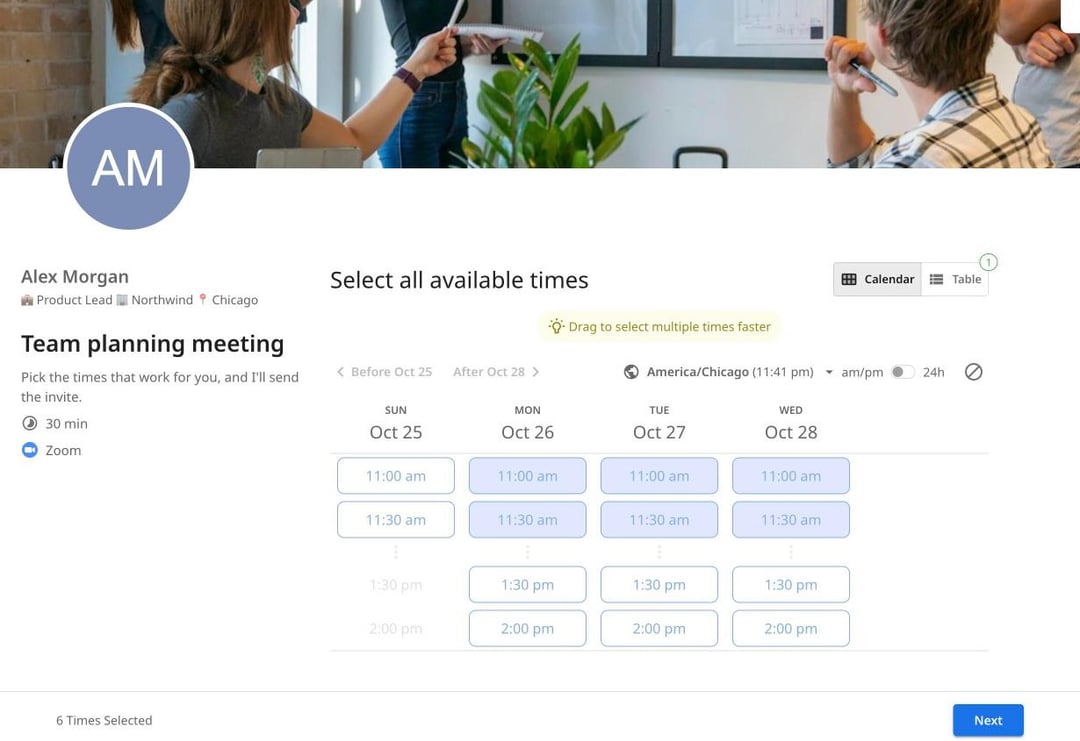
No ads, no grid to zoom into, and no invite to write. You do need a free zcal account to make a poll, which is what lets zcal check your calendar and send the invites. The free plan has no limit on polls or voters.
Create a free poll, or see how meeting polls work. For a side-by-side look, read our When2meet alternative comparison.
Frequently asked questions
Do you need an account to use When2meet?
Can you edit a When2meet after you create it?
Does When2meet adjust for time zones?
Can you make a When2meet for next month?
Is When2meet safe?
Is there a When2meet app?
Related Articles
There's a better way to schedule meetings
Join zcal freeWant unlimited booking links, polls and reminders for free?
Try zcal free