
How to Share Your Apple Calendar on iPhone, Mac and iCloud
Published October 26, 2026

At a glance
To share an Apple calendar on iPhone, open the Calendar app, tap Calendars at the bottom, then tap the info button (i) next to an iCloud calendar. Tap Add Person, enter the person's email address and tap Done. They get an invitation, and once they accept, they see your events. You can also turn on Public Calendar to share a read-only link with anyone.
Sharing a calendar is the easiest way to stay in sync with a partner, a family or a small team. Apple makes it simple once you know 2 rules: you can only share iCloud calendars, and the people you invite need an Apple Account. This guide shows how to share on iPhone, on a Mac and on iCloud.com, with screenshots, plus how to share with people who use Google Calendar or Outlook.
Table of contents
Before you start: 2 rules
- Only iCloud calendars can be shared. In the Calendar app, tap Calendars to see your list. Calendars are grouped by account: iCloud, Gmail, Exchange, or "On My iPhone". Only the ones under iCloud can be shared from the Calendar app. A Google calendar is shared from Google Calendar instead.
- Private sharing needs an Apple Account. The people you invite must sign in with an Apple Account and use iCloud. Anyone else can still see a read-only copy through a public link.
Here are the ways to share, side by side:
| Way | Who can see it | Can they edit? | Do they need an Apple Account? |
|---|---|---|---|
| Share with people (Add Person) | Only the people you invite | Your choice: "Allow Editing" on or off | Yes |
| Public calendar link | Anyone with the link | No, read-only | No |
| A booking link | Anyone with the link, but they only see when you're free | No, they can only book an open time | No |
How to share an Apple calendar on iPhone
- Open the Calendar app.
- Tap Calendars at the bottom of the screen.
- Tap the info button (i) next to the iCloud calendar you want to share.
- Tap Add Person, then enter a name or email address. You can also tap the add button to pick from your contacts.
- Tap Done.
The person gets an invitation, and they see your events once they accept. The contact you pick needs an email address, so add one to their contact card if it's missing.
To change what someone can do: go back to the info button (i) next to the shared calendar and tap the person's name. Turn Allow Editing on to let them add and change events, or off to let them only look. Tap Delete to stop sharing with that person.
To share a read-only link with anyone: tap the info button (i) next to the calendar, turn on Public Calendar, then tap Share Link. Send the link by Messages, Mail or any other app. People can subscribe to it, but they can't change anything.
Make a separate calendar to share
You may not want to share your whole calendar. Make a new one just for what you share, such as "Family" or "Team":
- In the Calendar app, tap Calendars.
- Tap Add Calendar, then Add Calendar again.
- Enter a name and tap Done. If iCloud isn't your default calendar account, tap Accounts and pick iCloud first.
- Share the new calendar with the steps above.
From now on, put shared events in that calendar, and keep your private events in your own. This is also the best way to share a calendar with your partner: one "Family" calendar for both of you, with editing on.
How to share an Apple calendar on iCloud.com
On a computer that isn't a Mac, use iCloud.com. We tested it in Chrome:
- Go to icloud.com/calendar and sign in.
- Place the pointer over the calendar in the left list, then click the share button (the person icon) next to its name.
- Next to Sharing With, click the plus button and type the person's email address.
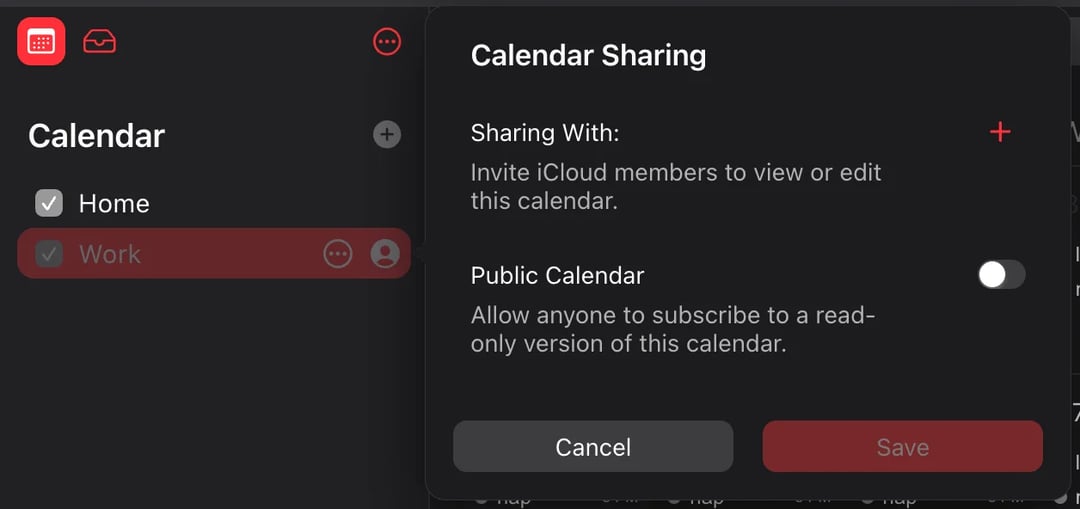
- Click Done. Watch out: iCloud sends the invitation as soon as you click Done, even before you click Save.
- Click the 3 dots next to the person to choose Allow Editing or Read-Only. The same menu has Invite Again and Remove Person.
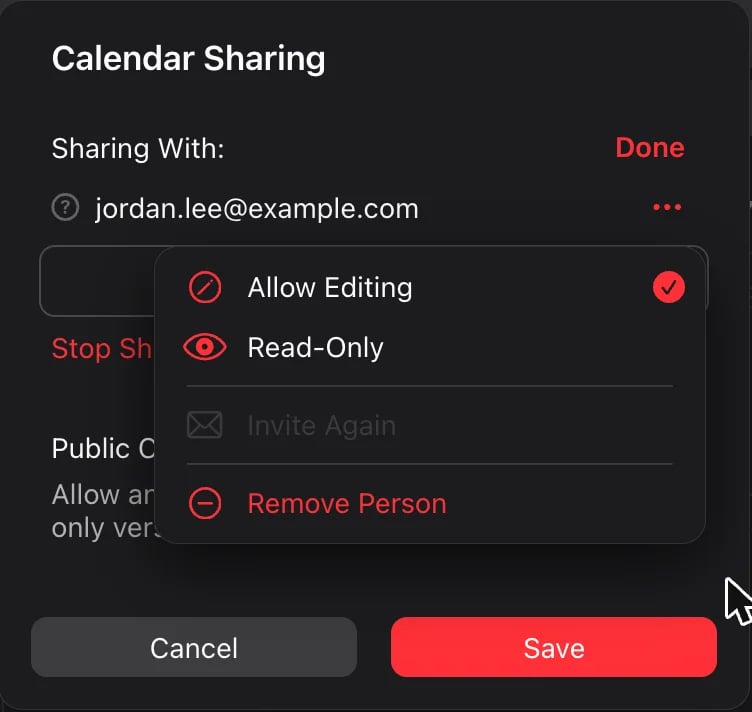
A question mark next to a name means the person hasn't answered yet. Apple shows a green check when they join, and a red X when they decline.
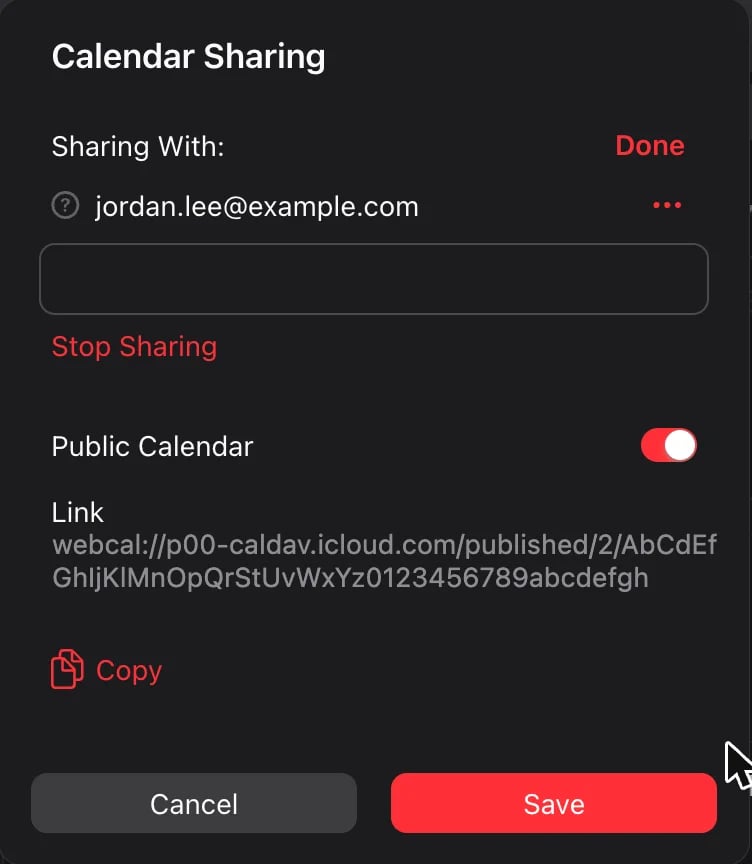
To share a public link: in the same panel, turn on Public Calendar. iCloud shows a link that starts with "webcal://". Click Copy, then Save.
How to share an Apple calendar on a Mac
- Open the Calendar app. If you don't see your calendars on the left, choose View > Show Calendar List.
- Place the pointer over the calendar's name, then click the share button that appears.
- Click Share With, then enter the names or email addresses of the people you want to invite.
- To set what each person can do, place the pointer over their name and click the down arrow.
- To let anyone view the calendar, select Public Calendar.
- Click Done.
The people you invite get a notification and an email.
How to share with someone who uses Google Calendar or Outlook
A private iCloud share only works for people with an Apple Account. For everyone else, use the public link:
- Turn on Public Calendar and copy the link (see above).
- In Google Calendar (on a computer): click the gear icon, then Settings > Add calendar > From URL. Paste the link and click Add calendar. It's the same step as in our guide to merging Google calendars.
- In Outlook (on the web or the new Outlook): open your calendar, choose Add calendar, then Subscribe from web, and paste the link.
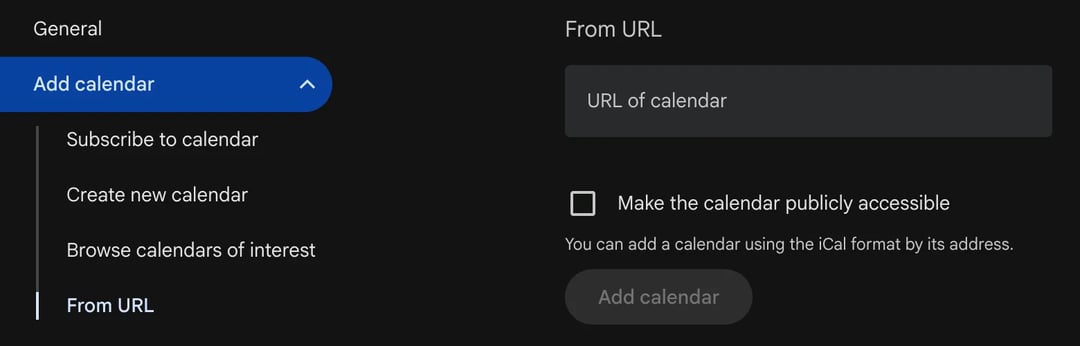
The calendar shows up in their app, read-only. They see your changes, but not the moment you make them: Google and Outlook check subscribed calendars on their own schedule. Anyone who has the link can see the calendar, so only share it with people you trust.
Why won't my iPhone let me share my calendar?
- It isn't an iCloud calendar. Calendars under Gmail, Exchange or "On My iPhone" can't be shared from the Calendar app. Make a new iCloud calendar and share that one.
- The contact has no email address. Apple needs an email address to send the invitation. Add one to the contact, or type the address by hand.
- The other person doesn't use iCloud. They need an Apple Account for a private share. Send them a public link instead.
- You're not the owner. Only the person who made the calendar can invite people or turn on the public link.
- The invitation hasn't been accepted yet. Ask them to check their email and the Calendar app, or send it again with Invite Again on iCloud.com.
Share your free times without sharing your calendar
Sharing your whole calendar is right for family. For clients, coworkers and anyone outside your circle, it shows too much: every appointment, every name, every private plan. And they still have to text you to pick a time.
A booking link solves both. zcal, a free scheduling app, connects to your Apple calendar through iCloud. People who open your link see only the times you're free, pick one, and the meeting lands in your calendar, with no events shown and no back-and-forth. Connect your Google and Outlook calendars too, and zcal checks all of them before it offers a time, so you never get double-booked.
Make your free booking page, or see what a zcal booking page can do.
Frequently asked questions
How do I stop sharing my Apple calendar?
Related Articles
There's a better way to schedule meetings
Join zcal freeWant unlimited booking links, polls and reminders for free?
Try zcal free