
How to Merge Google Calendars (4 Ways, With Screenshots)
Published October 25, 2026
At a glance
To merge Google Calendars, first decide what you want. To see two calendars in one place and keep them up to date, share one with your other Google account. To move every event into one calendar for good, export the old calendar as a .ics file and import it into the new one. Both take about 5 minutes on a computer.
Most people end up with more than one Google Calendar: a work account, a personal Gmail, maybe a side project or a shared family calendar. Checking each one is slow, and it's how you end up booked twice at 2 PM. Google doesn't have a "merge" button, but it has 4 ways to get the same result. This guide shows each one, step by step with screenshots, and tells you which one to use.
Table of contents
Which way should you merge?
"Merge" can mean 2 different things. Most people want one view: all their events in one calendar app, kept up to date. A few people want one calendar: every event copied into a single calendar, often because they're closing an old account.
| Way | What you get | Stays up to date? | Can you edit events? | Best for |
|---|---|---|---|---|
| 1. Show calendars side by side | All calendars of one account in one view | Yes | Yes | Calendars that are already in the same account |
| 2. Share with your other account | The calendar shows up in your other account | Yes | Your choice when you share | A work account and a personal account |
| 3. Subscribe with the secret address | A read-only copy in another account or app | Yes, but not instantly | No | Apps that can't sign in to Google |
| 4. Export and import | Every event copied into one calendar | No, a one-time copy | Yes | Closing an old account |
Our advice: use way 2 for almost everything. It's live, it's two-way if you want it to be, and you can undo it in a click. Only use way 4 when you're leaving an account behind.
1. See all your calendars in one view (same account)
If your calendars are already in one Google account, you don't need to merge anything. Google Calendar can show them all at once:
- Open Google Calendar on a computer.
- In the left sidebar, find My calendars and Other calendars.
- Check the box next to every calendar you want to see. Each one keeps its own color.
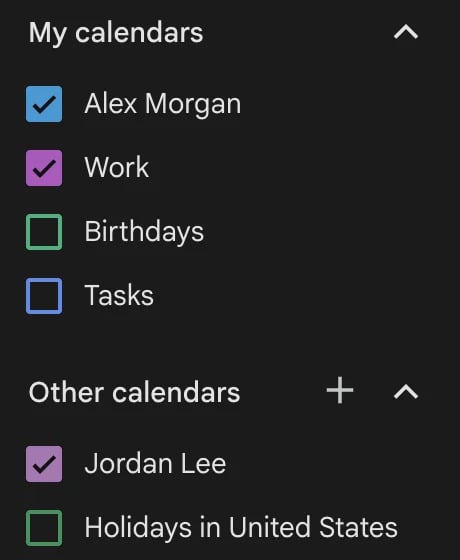
To tell calendars apart at a glance, click the 3 dots next to a calendar and pick a different color.
2. Share a calendar with your other Google account
This is the best way to see a work calendar and a personal calendar together. The calendar stays in its own account, and every change shows up in the other one.
On a computer, sign in to the account that owns the calendar, then:
- Click the gear icon, then Settings.
- Under Settings for my calendars, click the calendar you want to share.
- Scroll to Shared with and click Add people and groups.
- Type the email address of your other Google account.
- Under Permissions, pick how much the other account can see and do, then click Send.
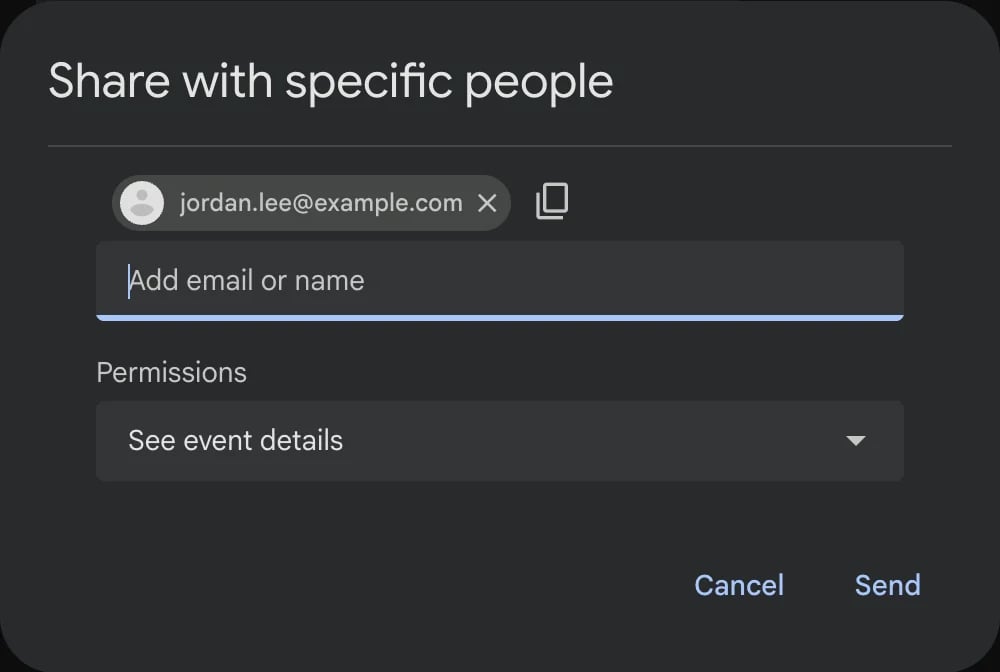
Google gives you 5 permissions:
- See only free/busy (hide details)
- See event details
- Make changes (see private events as free/busy)
- Make changes and see all event details
- Make changes and manage sharing
For your own second account, pick Make changes and see all event details, so you can add and move events from either account. To show a work account that you're busy without showing your personal plans, pick See only free/busy. Your coworkers see "busy" and nothing else.
Your other account gets an email with a link. Open it while signed in to that account, and the calendar appears under Other calendars.
A work or school account may not be able to share with a personal Gmail address. That's a setting your admin controls, so if the share fails, try the other direction: share your personal calendar with your work account.
3. Subscribe with the secret iCal address
Every Google calendar has a private link in iCal format, the standard calendar file format that almost every calendar app can read. Add that link to another Google account, and you get a read-only copy that updates by itself.
Copy the address from the calendar you want to add:
- In Google Calendar, click the gear icon, then Settings.
- Under Settings for my calendars, click the calendar.
- Scroll to Integrate calendar and copy Secret address in iCal format.
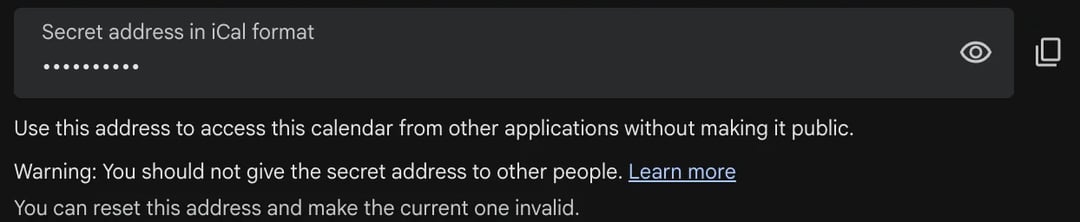
Add it to your other account:
- Sign in to the other Google account on a computer.
- Click the gear icon, then Settings.
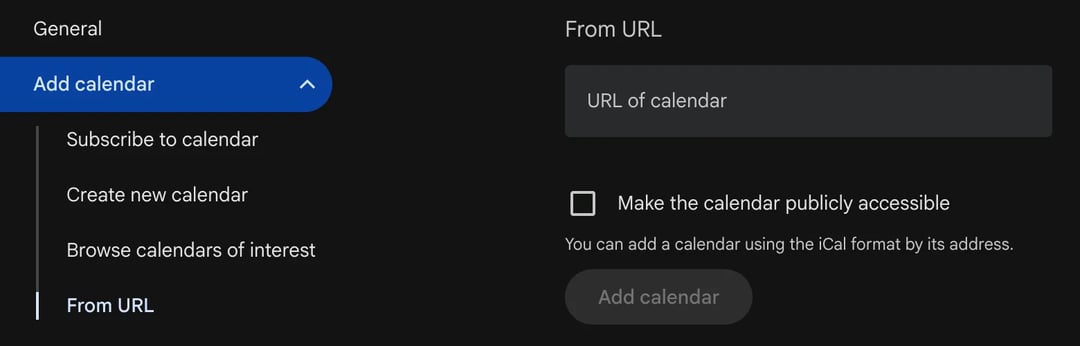
- Click Add calendar, then From URL.
- Paste the address and click Add calendar.
Know the limits before you use it:
- It's read-only. You see the events, but you can't edit them from the second account.
- It isn't instant. Google refreshes subscribed calendars on its own schedule, so a change can take a while to show up. Don't use this way for anything that changes by the minute.
- It only works on a computer. The Google Calendar phone app can't add a calendar by URL.
- Keep the address secret. Anyone with it can see your events. If it leaks, click Reset under the address to make the old link stop working.
This way shines when the other app can't sign in to Google at all. Outlook and Apple Calendar can both subscribe to the same address.
4. Move events into one calendar for good (export and import)
Use this when you're closing an account, or when you really want one calendar instead of two. It copies every event once. Later changes in the old calendar don't follow.
Export from the old account:
- Click the gear icon, then Settings.
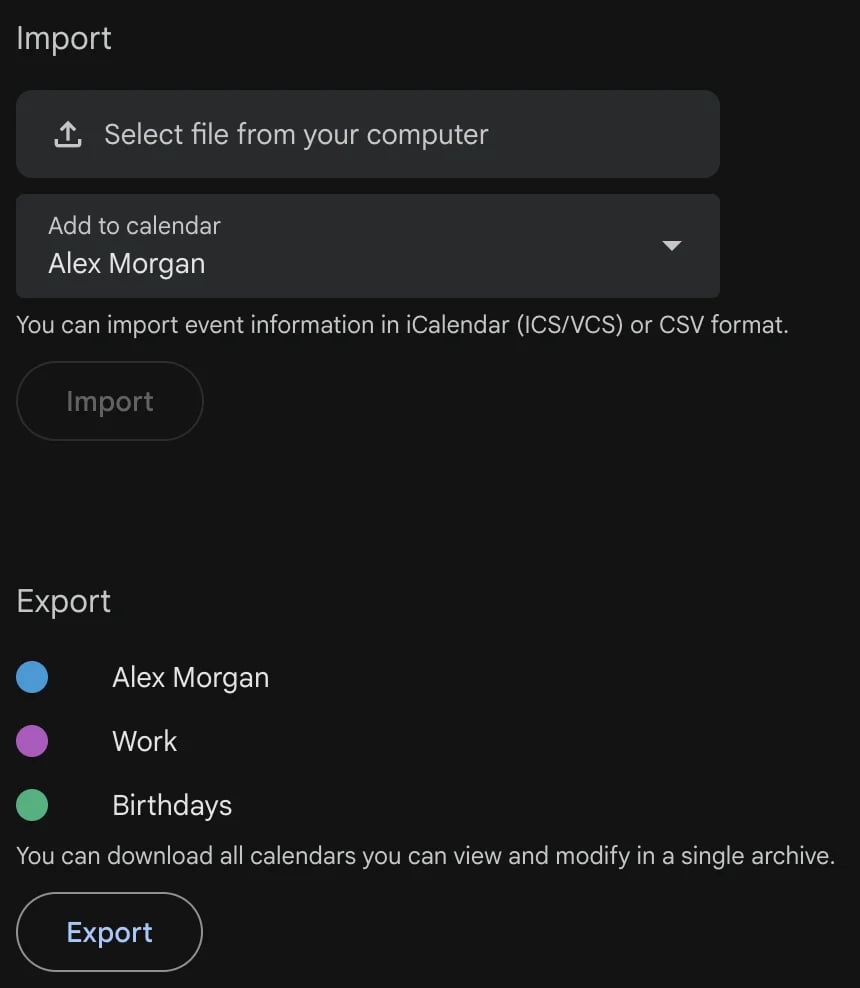
- Click Import & export, then Export. Google downloads a .zip file with one .ics file for each calendar.
- Unzip the file on your computer.
To export just one calendar, open it under Settings for my calendars and click Export calendar.
Import into the new account:
- Sign in to the new account and open Settings > Import & export.
- Click Select file from your computer and choose one .ics file.
- Under Add to calendar, pick where the events should go.
- Click Import. Repeat for each .ics file you want to keep.
Our tip: import into a new, empty calendar first. Create one under Add calendar > Create new calendar, and pick it in Add to calendar. If the import goes wrong, you delete that one calendar, and your main calendar stays clean. If it looks right, you can keep it as its own color.
Watch out for these:
- Importing the same file again can make duplicates. Import each file once.
- The old calendar doesn't change. Exporting copies events; it doesn't delete them. Delete the old account's events only when you're sure the import worked.
- It needs a computer. You can't import or export from the Google Calendar phone app.
How to see merged calendars on your phone
Google Calendar app (iPhone or Android): sign in to every Google account in the app. It shows the calendars of all your accounts in one view, with the same colors you picked on the web.
Apple's Calendar app on iPhone:
- Open the Settings app.
- Tap Apps, then Calendar.
- Tap Calendar Accounts, then Add Account.
- Tap Google and sign in. Repeat for each account.
All your Google calendars then show up in the Calendar app next to your iCloud calendars. To share one of your iCloud calendars with someone, see how to share an Apple calendar. (Some guides still say Settings > Calendar > Accounts. That's the path on older versions of iOS.)
Merged calendars don't stop double bookings
Once your calendars sit side by side, you can see a clash. But a client booking you through a link can't. If that booking page only checks your work calendar, it will happily offer 2 PM while your dentist appointment sits on your personal calendar. That's how most double bookings happen.
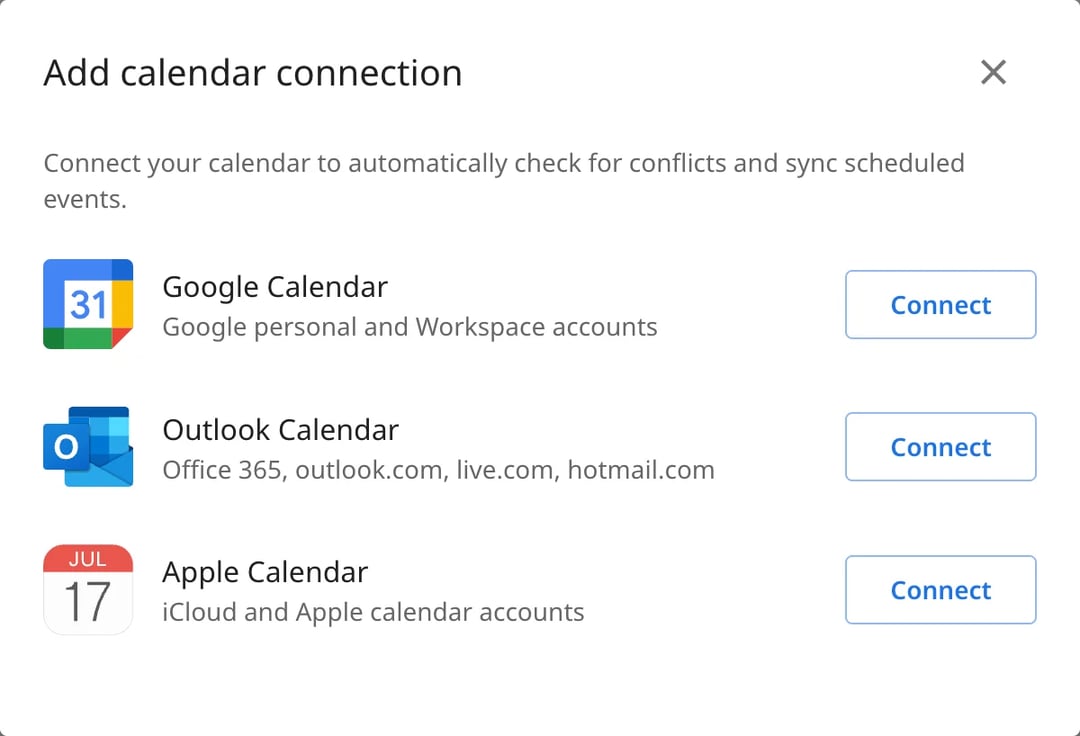
zcal, a free scheduling app, checks every calendar before it offers a time. Connect up to 10 calendar accounts (Google, Outlook or Apple), choose which calendars to check for conflicts, and choose the one calendar where new bookings land. Your booking page then only shows times when you're free in all of them.
It's free, with unlimited booking links. Create your free booking page.
Common problems
- The shared calendar doesn't show up. Open the email from Google while signed in to the right account, and click the link. Then check that the calendar's box is ticked under Other calendars.
- Sharing is grayed out or fails. Your work or school admin may block sharing outside the company. Share in the other direction, or ask your admin.
- Events show up twice. You may have imported the same file twice, or shared a calendar and also imported it. Remove one of the two.
- A subscribed calendar is out of date. That's normal for way 3. Use way 2 if you need changes to show up right away.
Frequently asked questions
How do I sync my Google Calendar to another Google Calendar?
Can I merge two Google accounts?
How can I merge multiple calendars into one calendar?
Can I have two Google calendars on my phone?
Does merging Google Calendars delete anything?
Related Articles
There's a better way to schedule meetings
Join zcal freeWant unlimited booking links, polls and reminders for free?
Try zcal free